

Bigleaf Installation Guides

Warm Spare Install Instructions

A second Bigleaf router available as a Warm Spare

Let's get started

Follow these steps to prepare and maintain a Bigleaf router as a Warm Spare device. If you have any problems or questions, reach out to Bigleaf Technical Support.

Step 1 – Prepare the Bigleaf equipment

To setup and maintain configuration and firmware synchronization:

  1. Connect the Warm Spare router to a DHCP enabled Internet source.
    • Use an Ethernet cable to connect the WAN4 port to an active DHCP handoff.
    • For Edge 800W devices, use WAN3 (no physical WAN4 port)
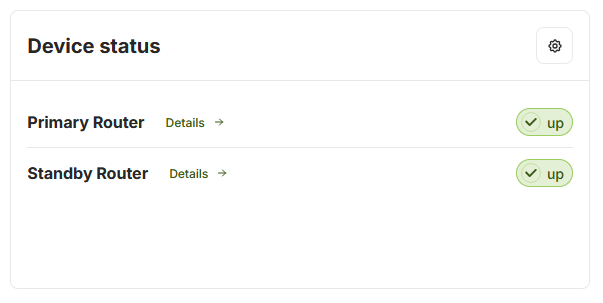
  2. Verify the device status in the Bigleaf Cloud Connect Dashboard.
    •  Confirm that the Warm Spare is checking in and receiving updates in the Overview tab
Security recommendation

  •  Keep the Warm Spare outside your LAN, ideally in a DMZ, to reduce security risks.
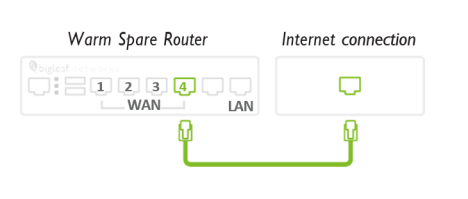
NOTE: For an Edge 800W device with integrated cellular, the WAN3 port will be used on the warm spare/standby router as there is no physical WAN4 port on the device.

Step 2 — Activate the Warm Spare During a Failure

If your primary router stops working:

  1. Move all cables from the failed router to the matching ports on the Warm Spare router.
  2. Power on the Warm Spare.
  3. Activate the router and move your Bigleaf IP assignments to it in the Bigleaf Cloud Connect Dashboard (requires Super Admin or Company Admin credentials) following the instructions in this Help Center article.
  4. Once activated, confirm the router is online and checking in on the Overview tab in the Bigleaf Cloud Connect Dashboard.

 If you don’t have the needed credentials, have any questions or issues, contact Bigleaf support for help: (888) 244-3133

Note: Devices may vary however the named port designations remain the same. Get to know your device here.